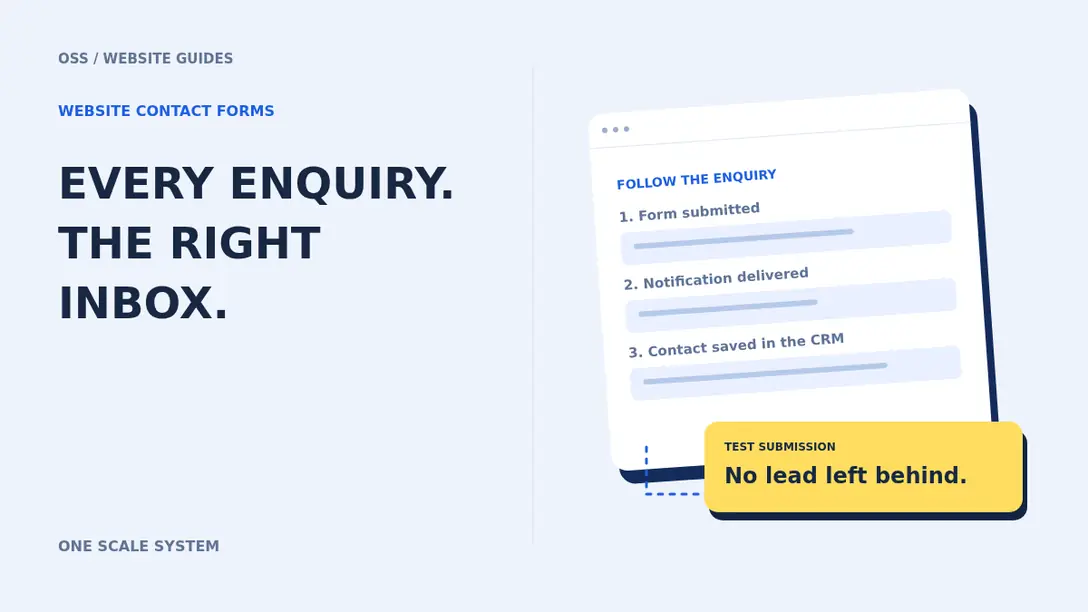
Your website looks professional and visitors are finding your business. But what if the contact form silently fails? A visitor might see a success message while the business receives no inquiry. Before buying more advertising or redesigning the website, test the entire lead journey: browser, server, notification, CRM, and staff follow-up.
1. Submit a test form like a real customer
Open the site in a private browser window, enter a test name and an email address you control, and include a distinctive message and time. Try the same form on mobile. Did the Submit button respond? Was there a clear validation error? Did a confirmation appear? Did the record arrive in your inbox and CRM? A green success banner alone does not prove delivery.
| Where it fails | Typical symptom | What to check |
|---|
| Browser | Button does nothing | JavaScript, disabled controls, form validation |
| Server | Error or false success | Network response and server-side logs |
| Notification | Record saved but no email | SMTP, SPF, DKIM, DMARC and delivery logs |
| CRM | Email arrives but no lead | Field mapping, integrations and workflow runs |
2. Check saved submissions before blaming email
Look for the test submission in your form plugin, website backend, or CRM. If it exists, capture probably worked and you can focus on notification or assignment. If it does not, inspect endpoint errors, bot protection, validation, and database connectivity. Where supported, retain secure server-side entries so temporary notification failures do not destroy the only copy of a prospect's request.
3. Fix notification delivery the right way
Website servers are not always configured for reliable transactional email. Use a properly authenticated provider or SMTP transport. Authorize the real sending domain with appropriate SPF and DKIM records; check DMARC alignment. Set the sender to an authorized domain identity rather than impersonating the visitor. A validated visitor address can be placed in Reply-To. Review provider logs for rejected mail, invalid recipients, rate limits, and bounce events.
A message moving from spam to inbox once is not proof the problem is solved. Repeat the test after configuration changes and verify a real delivery event. If you use multiple notification destinations, test each one.
4. Inspect JavaScript and network requests
In browser developer tools, open the Console and Network tabs and submit again. A blocked or absent network request may indicate JavaScript or browser issues. HTTP 400 or 422 commonly signals invalid input; 403 can indicate a security rule, 429 a rate limit, and 500 a server error. The application should show useful field-level errors and preserve what visitors entered when a submission fails.
5. Review spam protection without blocking customers
CAPTCHA, honeypots and firewall rules can filter bots, but aggressive configurations sometimes reject legitimate inquiries. Review security logs, test across browsers and networks, and make adjustments based on evidence. Do not permanently disable protection simply to make one test pass.
6. Route every accepted inquiry into your CRM
A successful email does not guarantee a timely response. For a service business, the system should create or update the contact, record the requested service, create an opportunity when appropriate, assign an owner, notify the team, and track the next action. Connect your website forms to CRM workflows only after confirming the available destination fields and matching rules.
For example, a plumbing inquiry can enter a New Lead pipeline, notify the coordinator, and send an appropriate receipt confirmation. An urgent request should be escalated for staff review without promising an arrival time that nobody has confirmed. Do not confuse a customer service request with permission to send unrelated marketing messages.
7. Troubleshoot GoHighLevel workflow failures
- Confirm the correct form and submission trigger are selected.
- Check that the workflow is published and active.
- Inspect filter rules, required tags, and contact enrollment or re-entry restrictions.
- Check execution logs for action errors and disconnected integrations.
- Test assignments, notifications and stop conditions using controlled contacts.
When a workflow does not execute, identify which step stopped instead of adding duplicate workflows. See our GoHighLevel workflow troubleshooting guide for more diagnostic steps.
8. Make the contact form usable on mobile
Ask only for the information needed to respond. For many small businesses, name, one usable contact method, service type and a short message are enough. Use proper mobile input types, readable validation, generous tap targets, and a visible loading state. Prevent accidental duplicate submissions and show a specific, truthful confirmation explaining what happens next.
9. Measure successful captures, not button clicks
Track form start, submit attempt, server acceptance, CRM record creation, assignment, and eventual appointment booking as distinct stages. In Google Analytics 4, count a completed lead only after the form actually succeeds. Do not send personal details such as email addresses or telephone numbers in analytics event parameters.
| Event | What it verifies |
|---|
| Submit attempted | Visitor clicked submit |
| Submission accepted | Backend successfully processed valid data |
| CRM contact created | Lead reached the lead-management system |
| Lead assigned | A staff member owns the response |
| Appointment booked | An inquiry progressed to a business outcome |
10. Maintain a recurring form-health check
After plugin updates, DNS changes, security changes or integration edits, repeat the complete journey test. A weekly controlled submission is a useful baseline; lead-dependent businesses should additionally monitor failed requests and notification errors. Keep an owner responsible for reviewing unresolved failures and duplicate records.
Frequently asked questions
Why does my form say sent but I receive no email?
The server may have accepted the entry while email delivery failed. Check submission storage, authenticated sender settings and delivery logs.
Can a form create a GoHighLevel lead automatically?
Yes, through supported native forms or integrations. Confirm field mapping, enrollment conditions and the resulting contact or opportunity record.
Should I replace the form immediately?
Not before identifying whether the browser, endpoint, email system or CRM integration is failing. Otherwise the same issue may return.
Turn form submissions into a reliable sales process
Your contact form is a business-critical connection, not just a visual element. OneScale System helps connect website development, CRM setup and follow-up automation. If leads are disappearing between your form and your sales team, contact us for a practical submission-to-CRM audit.

Muhammad Asif Khokhar
Founder & CEO, One Scale System
Part of the One Scale System team, helping small and local businesses grow with websites, CRM, automation, and digital marketing done for you.
Ready to grow your business?
Get a free professional website and a lead system that captures every customer — built and run for you.